Contact info

Contact us for more information Ph: +(679) 330 4554 Fax: +(679) 330 4864 Email: payroll@standss.com Web: www.standss.com.fj

Monday, July 6, 2020

How to Setup Deductions In PayMaker


Several clients have asked us in past if there are provisions to enter and track deductions in PayMaker…..if YES….how???

You can easily do this……It is quite simple….

It could be a useful feature for many companies because staffs generally request for staff loans, other personal loans and request to be deducted from their wages in the upcoming pays.

Here’s the instructions on how you can enter and track deductions in PayMaker.

How to set-up a deduction such as staff loan in PayMaker
  1. Go to Payroll Data Forms 
  2. Select Deduction 
  3. Select the Employee that has taken loan
  4. In the Deduction Column Select enter type of deduction taken by employee.
  5. In the Total column you will enter the total loan taken by the employee.
  6. In the Amount column, enter the amount that will be deducted each pay period.

Below example shows that the staff has taken a loan of $100 and $20 will be deducted from each pay.

Once the total amount has been paid off, PayMaker will automatically stop the deductions.

You can then view the deductions report by Selecting Other Reports (see image below)


Click the Preview but or Print button should you wish.

We hope that this will help you enter and track your deductions successfully in PayMaker. For further assistance please call us on 330 4554 or email us at payroll@standss.com.fj


Sunday, March 29, 2020

Compulsory FNPF Update As Per COVID-19 Response Budget


ALL companies using PayMaker will need to change their FNPF contribution in your payroll software before processing the first pay of April 2020.

Please ensure that all your March 2020 pays are done before making these changes. Once these changes are done, DO NOT rollback any pays from March 2020 or earlier.

Steps on how to change FNPF Contributions

  1. Click on the Administration menu group button on the main menu. The application displays a list of menu commands on the menu list box.
  2. Click on “System Setup” on the menu list box.
  3. Click the OK button. The application displays the System Setup screen.
  4. Click on FNPF Tab
  5. Change FNPF % (Member) and FNPF % (Company) to 5% as highlighted in the image below:

6. After you click OK there will be 2 prompts, please click Yes and close the setting screen.
         7. Restart PayMaker after making changes (Before processing any April 2020 pays)

If you have any questions, please contact us at our office on 330 4554.

Tuesday, December 10, 2019

Verification of Birthdate while Using Payroll Software (PayMaker)


Until now you may not have entered employee’s birthdates into your payroll software, PayMaker. If that is the case, you will need to check and ensure that all employee birthdates are entered correctly into PayMaker before you submit any 2020 files to FRCS.

Why?
As of January 1st 2020, FRCS will be opening a portal for all employers to use. Employers will need to use this portal to submit EMS files (and later Pay Day Reports). You will no longer be able to email the files to FRCS.

The new EMS file format will now contain both the employee TIN number and their birth dates.

As a means of validation, FRCS will check that the two match what they have in their records. If there is a mismatch then the entire file will be rejected until you correct and resubmit.

We recommend that you start verifying and correcting birth dates now and not leave it till the end, particularly if you have many employees.

We have updated PayMaker to create the EMS files in the new format required by the FRCS Portal. The new update to PayMaker also includes the soon to be introduced Pay Day Reports (required by FRCS) as well as fields for approval numbers for lump sum payments, redundancies etc. (also compulsory once the portal is released).

If you are an existing PayMaker User and require additional information regarding the above, feel free to contact us at 3304554 or email us at: payroll@standss.com.fj.

If you are not a user yet, please contact us for more information or a demo.

Wednesday, March 28, 2018

Assessment Notices for 2017

You may (as several companies already have) receive enquiries from employees with regard to assessment notices that they have received from FRCS. Employees are being told by FRCS that they need to pay additional PAYE!

Why do they need to do that, given that you are using PayMaker and carried out the two required rollovers (June 31st 2017 and 31st December 2017)?

The reason for this is that there were two different tax rates in 2017. We had emailed the following to FRCS on August 16 2017.

As you are aware, due to the tax change in the middle of the year, and the treatment of 2017 as 2 tax years, it is highly likely that the PAYE as Final Tax will not work as well as required i.e. some tax payers will be eligible for a refund while others will need to make additional payments (due to insufficient deductions at source). This can happen for both PAYE and SRT (and possibly for the new ECAL).

The response from FRCS has included the following:

Fully agree with your comments. Whilst this has not been addressed as yet, I can assure you that we will work along these lines: 

  • 2017 tax calculations for individuals will be a challenge.
  • FRCS fully appreciates this.
  • Penalties will not be charged for short deductions unless there is deliberate attempt to defraud the system.
  • Refunds will be issued for any over deduction.


As you can see from the above, FRCS are aware of this issue. Unfortunately, there was no solution available to this problem (in terms of a formula to get the correct final tax) and as a result, some employees will need to pay additional tax while others may get refunds.

Wednesday, January 17, 2018

Printing the Employee Payment History (Extended) Report With PayMaker

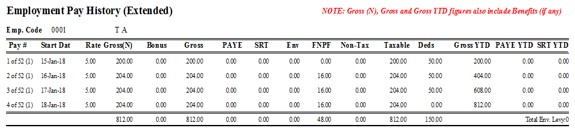
If you want to check an employees pay history, or check if the PAYE was calculated properly, you need to print the Employee Payment History (Extended) report. This report has all the relevant information that can be used with the spreadsheet provided by FRCA to see if tax calculation were done correctly.

You can print out the report using the following steps:
  1. Open PayMaker.
  2. Go to reports.
  3. Select Other Reports.
  4. Select Employee Payment History Extended report.
  5. Enter a valid date in Date From and To.
  6. Select an employee from the drop down list on the screen.
  7. Click the Preview button to see a Report similar to the one below.


If you have any questions, please contact us at our office on 330 4554.

Wednesday, January 10, 2018

Printing Tax Withholding Certificates with PayMaker Fiji Payroll Software

You can easily print your employee’s Tax Withholding Certificates (or P4-1 slips as they used to be called) from inside PayMaker.

The Tax Withholding Certificate summarizes the employee’s income for the year showing how much they were paid, how much PAYE was deducted etc.

Employees who have a single source of income generally no longer need a printed copy because FRCA already has this information… assuming that their employer is submitting monthly EMS files (PayMaker for Fiji Payroll users canprepare and submit EMS files at the click of a button).

You can use the steps below to print out the Tax Withholding Certificate from PayMaker
1.       Open PayMaker
2.       Click on Reports.
3.       Select Other Reports and click the “OK”.
4.       Scroll till you find the Tax Withholding Certificate (with Duplicates).
5.       Select the date range for the Tax Withholding Report.

6.       You can either select an individual employee in the drop down or leave the drop down blank to     view/print all employees.

7.       Click Preview.

Note: For 2017 you will need to print TWO Tax Withholding Certificates for each employee.

The reason for this is that there was a tax change in the middle of the year (with the new tax rate started from 1-August).

Each employee will need a Tax Certificate for  the following date ranges.

The first is for the date range (01/January/17 – 31/July/17)
The second date range is (01/August/17 – 31/December/17).


We hope that this helps you with your end of year payroll tasks. If you need any help, please call us on 330 4554.

Tuesday, November 14, 2017

How can I track Projects in PayMaker?

We were recently asked by a customer on how they could track time spent and amount paid out on projects for their staff using PayMaker?

This would be useful to any company where employees work on multiple projects e.g. Construction companies.

You can do this using the Accounts feature of PayMaker. This lets you allocate a different account to each line of your timesheet. Most of our clients do not use this for anything useful and simply allocate it to one account called Wages.

However you can use it for Project cost tracking as explained below.


Step 1: Setup your Projects as Accounts in PayMaker

           1. Go to Administration
           2. Select Table Maintenance and click OK
           3. Select Accounts and click OK
           4. Click Add and enter the Project names as per your requirements (Example shown below)


Step 2: Enter timesheets with Account/Project information.

         1. Create your batches as you normally do to enter your timesheets.
         2. After the batches are created you can select the project names as shown in the                                    picture below by using the Account drop down.

Step 3: Print reports with Project/Accounts information.

PayMaker has a number of reports that you can use to print out project/account related information.

      Payroll Reports:
          1. Go to Reports
          2. Select Payroll Reports
          3. Choose Accounts or Account Details (Based on your Company requirements)


We hope that this post helps you to use PayMaker even more effectively to manage your business. If you need any further help, please contact us at payroll@standss.com.fj or call us on + (679) 3304554

Wednesday, July 26, 2017

Compulsory Payroll Update due to 2017/2018 Fiji Government Budget

ALL companies using PayMaker will need to update their payroll software after processing their past pays for July 2017 and before processing their first pay for August 2017.

The reason for this is that a number of major changes that affect payroll related taxes were announced as part of the Fiji Government's 2017/2018 budget. These changes includes:

  1. The first $30,000 of income for Fiji Residents will now be tax free.
  2. A new Environment Levy of 10% will be charged for anyone earning above $270,000 per year.
  3. The Social Responsibility Tax for employees earning above $270,000 has been reduced by the same 10% that is now charged as Environmental Levy.
  4. The format of the EMS file that companies submit monthly has been changed to accommodate the new Environmental Levy.
These changes come into effect from the 1st of August 2017.

Therefore, you must contact our office to arrange an upgrade to PayMaker before you process your first pay in August.

Please contact us at (679) 3304554 or payroll@standss.com.fj.


Wednesday, July 6, 2016

How to submit FNPF Monthly CS Forms Electronically

You may have noticed that Fiji National Provident Fund (FNPF) are now requiring employers to submit their Monthly Contribution Schedules (CS) using the FNPF online portal.


Using the portal will also save your business a lot of time. Users report that they can now make payments at FNPF in less than 15 minutes, instead of having to wait for more than an hour to get data checked manually.

In order to use the online portal, your payroll software must create files in the format that FNPF has specified.

PayMaker has been tested and certified by FNPF and can be used to create your monthly files in less than 2 minutes as shown in the following video.


Once you have created the file in PayMaker you can upload it to the FNPF portal as shown in this second video.

If you are a PayMaker user and need additional information or support please contact us a 3304554 or emails us at payroll@standss.com.fj.


Wednesday, August 5, 2015

VIDEO: Generate your EMS file at the click of a button

It is FRCA's requirement that all Fiji payroll software programs be able to generate the monthly EMS file in their specified format. PayMaker users can generate the EMS at the click of a button. This video shows you exactly what you need to do.


Monday, July 6, 2015

Standss donates $10,000 to Hilton Special School

Students in a Special Class at Hilton. The teachers are an inspiration to their hearing impaired students as they share the same disability.

We are happy to report that thanks to your support, Standss has had the privilege of again making a donation to the Hilton Special School. In this post I would like to share details of how the donation will be used and some of the truly inspiring work we witnessed when the Standss team visited the school last week.

The Hilton Special School is the main organization in Fiji that works with children with hearing and physical disabilities. This organization serves a very important and often neglected group of children in our community… and they have been doing it very well for many years.

The organization operates a school, an early intervention center, an audiology unit, a physiotherapy unit and a hostel.

While they get some government assistance, a lot of their work is only possible with the help of grants and donations.

Last year we donated $10,000 to them to assist with setting up a new physiotherapy unit. The physiotherapy unit has now been setup.

Last week we donated an additional $10,000 which will be used towards the salary of a qualified physiotherapist who will work with the children.

During our visit to the school, we were given a tour of the different classes that are currently being held. Some of the truly inspirational things that we learnt and witnessed included:

• The children are taught the exact same syllabus that are taught in all other schools in Fiji. The only difference here is the mode of learning as the children here need different attention because of hearing impairments or restricted mobility.

• The teachers of one class were both without hearing. They had benefited from the work that from organizations like Hilton in their youth, had gone through teacher training and were now inspiring and teaching other students that their disabilities did not have to hold them back.

• The Hilton  School also had a computer lab. Krishneer Sen, the teacher and administrator of the lab was also a former Hilton student.

Krishneer Sen is a former student of Hilton who now teaches computing classes for their students.

After Hilton, he went to a technical school in New Zealand and then won a scholarship to Gallaudet University which is the world’s only university designed to accommodate deaf and hard of hearing students.

Krishneer is a source of inspiration for all of us. His life shows us what is possible with support and determination. He also shows the tremendous impact that organizations such as Hilton have , not only on individuals directly affected, but also on the lives of people that that these individuals will affect in turn.

I know that I may have overused the word but this visit by our team was truly inspiring for us.

It is too easy to forget that just having normal hearing, site and mobility is a privilege.

It is humbling to see the work that others are doing to empower these children to live full lives
.
We want to thank the team at Hilton for their service and for allowing us the opportunity to contribute.

And finally… we want to take this opportunity to thank all our customers.

We are only able to support Hilton and other similar organizations because of your continued support of our products and company.

We want you to know that you have are making a difference.

Sanjay and the team at Standss

Sunday, July 5, 2015

What is the Sequence Numbers in EMS files?

PayMaker users are able to generate EMS files for monthly submission to FRCA at the click of a button. In this post I will explain the use of the Sequence Number field because it has been causing some confusion for users.

What is the EMS File?

Effective from 1st January 2013, all employers are required to submit an Employer Monthly Summary (EMS). The EMS is an electronic file that is to be completed and lodged by all employers who pay employee salaries or wages. The EMS is to be filed monthly and included details of all salaries and wages paid for the month.

The format for the EMS file is defined by FRCA. The Standss PayMaker software has been tested and certified by FRCA and creates these files at the click of a button at the end of each month.

Using PayMaker to create your EMS File
  1.  Start PayMaker
  2.  Click Reports
  3.  Click PAYE Monthly Report and File to display the following screen


    4.  Choose the Month and Year.
    5.  Enter the Sequence Number. You will normally enter 01 in this field. (more on this later).
    6.  Click the little folder icon on the screen to choose a folder where the file will be created.
    7.  Make sure that 11 character FNPF Number is selected for the format (FRCA has changed their    system to now only accept 11 character FNPF numbers).
    8. Click Create File.

Your EMS file will be created for you in the folder you selected. You will need to send this file to payeems@frca.org.fj.

What is the Sequence Number?

Most of the time, you will need to enter 01 (or 1) as your sequence number.
This indicates that this is the first EMS file that you are sending for the month.

When do you use a different Sequence Number?

You will only ever need to use a different sequence number if FRCA rejects your file because they found some errors (or if you want to resubmit your file because you discovered that the file that you originally sent had some errors).

Since the sequence number of the file that you sent the first time was 01, you will change the sequence number to 02 which indicates that this is your second try at sending the same file. If changes have to be made again, then change the sequence number to 03 before resubmitting… and so on.

Each time you send the file, FRCA will use it to replace all the information you sent previously.
And remember… when you send your EMS file for the next month, the sequence number will go back to being 01.


Sunday, June 21, 2015

Answers to your PAYE Questions

FRCA CEO Jitoko Tikolevu anwers questions related to PAYE as final tax in this Fiji Times article. Questions include:

What are the employers obligations?
What are the employees obligations?
Who should pay PAYE (Employer or Employee) if the correct amount was not deducted?

See full article on Fiji Time website.

Thursday, January 1, 2015

What's new in PayMaker in 2015

Due to changes announced in the 2015 budget, and changes introduced by FNPF, we have released a new version of PayMaker. Some of the changes in the new version include:

  • FNPF Changes: Allow 10% Employer Contribution
  • FNPF Changes: Allow excess employee contribution
  • FNPF changes: Allow monthly exporting of contributions
  • PAYE Changes: Changes in formula based on revised FRCA spreadsheet
  • PAYE Changes: Change in EMS file format to cater for new 11-digit FNPF member number
  • PAYE Changes: Special Tax Rate for employees on S (secondary) employment
  • PAYE Changes: Allow Benefits such as excess FNPF (Employer)

We are committed to doing our best for our customers so that they are compliant with any regulations that affect payroll in Fiji. 

Although these changes were announced fairly late in the year, our team worked with FRCA and FNPF to ensure that all file formats etc met their requirements. 

The team have worked through the holiday season to udpate the software and are now busy rolling out the update to our customers.

Please contact us on 3304554 or payroll@standss.com.fj if you need more information.

Check the Number of Pay Periods BEFORE your first pay.

You may need to update the number of pay periods in PayMaker before you process your first pay for the year.

The number of Pay Periods is important because it is used in FRCA’s formula to calculate the PAYE.

The number of pay periods in a year can vary, particularly for weekly or fortnightly pays depending on the week-ending day.

How to calculate the number of Pay Periods

This has to be done manually. Use a calendar to work out the number of pays that you will be paying this year.

For weekly pays, this number will usually be 51, 52 or 53. For fortnightly pays, the number will usually be 25, 26 or 27.

Where to update the number of Pay Periods in PayMaker

Start PayMaker.
Click the Administration button on the main menu.
Open the Standard Payrolls screen (double click Standard Payrolls on the menu).
Move to the relevant payroll and ensure that value under Total Pay Periods THIS year is correct.

You need to do this for all the different types of pay paid out by your company!

Effect on First Pay because of 10% Employer FNPF Contribution in 2015


How should you process the first pay of 2015 if it includes some days from 2014.

As of 1st January 2015, the compulsory employer contribution for FNPF has increased from 8% to 10%. Employee contribution (compulsory) remains at 8%. Both employers and employees can also make voluntary contributions to a total FNPF contribution of 30% (employer and employee combined).

What should you do if your first pay of 2015 includes some days from 2014?

FNPF is not interested in the individual days for which the pay was for. Instead it calculates the contributions based on the pay date you entered for the entire pay (usually the week-ending date).

OPTION 1
The easiest thing to do is to treat the entire pay as a 2015 pay.

This means that the employer will pay an extra 2% FNPF for the few days which were still in 2014.

OPTION 2
Create two separate pays… Pay 1 will be for the remaining days in 2014 and Pay 2 will be for days in 2015.

If you choose to do this, then you will need to process Pay 1 before you carry out your End of Year updates for 2015.

The downside of this is the extra work involved in preparing and paying out two separate pays.

Sunday, November 23, 2014

What the 2015 Budget means for payroll

A number of changes were announced in the 2015 budget by the Fiji Government on 21st November 2014 that affects all employers and employees in Fiji.

FNPF

From 1st January 2015, all employers are required to contribute 10% FNPF for employees. This is an increase in the compulsory contribution from the previous 8%.

The employee (member) contribution remains at 8%. However as per the FNPF announcement earlier this year, employees are also now able to make voluntary contributions. In the past the voluntary contributions could only be made by employers.

This means that the total COMPULSORY contribution will now be 18% (10% by employers and 8 % by employees) and the total contribution can go as high as 30%.

PAYE

No changes were announced to the PAYE tax rates.

However, while it was not a part of the budget announcement, it is our understanding that FRCA may change the formula used for tax calculation to cater for a few problems with the formula introduced in 2013.

What does this mean for PayMaker users?

As always PayMaker users can be confident that the team at Standss will ensure that their payroll system will continue to meet all FRCA and FNPF requirements.

The 2015 budget changes will require another update to PayMaker before the start of the year.

The development team are already working to implement the FNPF changes. We are waiting to find out if FRCA also requires any changes so that we can keep costs down for customers by doing the updates in one release.

We will email or fax all customers with details of the update in the next few weeks. 

In the meantime, if you have any questions, please email us at payroll@standss.com.fj

Thursday, October 23, 2014

Employers MUST submit FNPF payments using new forms

FNPF has released a revised format for the CS form. The CS form (or Contribution Schedule) is the form that employers submit with payment to FNPF at the end of the month.


Payments made in November (for deductions from October) wages must be made using the new CS form.

These changes are part of FNPF's transition to new systems and processes due to new laws that come into effect on 1 November 2014.

We have upgraded PayMaker with the new form so that our customers can continue to prepare their monthly reports literally at the click of a button.

We are contacting customers to arrange a convenient time for the upgrade.

PayMaker users who have not been contacted yet can call our office on 3304554 or email us at payroll@standss.com.fj  to arrange a convenient time for our team to carry out the upgrade.
If you are not a PayMaker user (yet), click here to learn why we are Fiji's Number 1 payroll solution.

Wednesday, December 18, 2013

Don’t Forget Your End of Year Payroll Procedures

Before you process your first pay of 2014, please remember to carry out the End of Year Rollover which includes:
  • Repairing and backing up your payroll data for 2013
  • Clearing your Year to Date totals for 2013
  • Clearing leave totals as appropriate
Make sure to contact your payroll software supplier to get instructions on how to do this using the software.

PayMaker users can follow the steps below:
  • Process your last pay for 2013
  • Repair your data files in case data files have been electronically corrupted in any way (Leaving your data in an unstable state can lead to data loss)
  • Create a backup copy of your payroll data files. Make a separate copy that contains 2013 data.  
  • Clear Year-To-Date totals for calendar year (and financial year if appropriate)
  • Clear Leave Totals as appropriate
You must carry out the End of Year procedures in the correct order to ensure that 2013 records are accurate as per the FRCA’s requirements. Our trained staff can do this for you at your office (or remotely if you are outside Suva)

For PayMaker customers: Please email us at payroll@standss.com.fj or call us on 330 4554 to schedule your End of Year Service and Upgrade.

Standss is now on Facebook

Get the latest information on payroll changes that affect Fiji employers and employees on our Facebook page. Simply visit our Facebook page and LIKE it to get regular updates on your Facebook newsfeeds.

Looking for a Payroll software that is Tax Compliant?
Contact us now:

Ph: +(679) 330 4554 Fax: +(679) 330 4864

MAJOR changes to Payroll Processing for ALL EMPLOYERS

The Fiji Government has again made major changes to how payroll is to be processed from 2014. 

While the tax rates have not changed, the method of calculation has now changed significantly.

The new method of calculation was gazetted on Friday November 22nd 2013.

These changes are to further streamline the implementation of the PAYE as Final Tax which was introduced in 2013.

If you are a PayMaker user, you do not need to worry. PayMaker is currently being updated and will be fully compliant. We will provide you with more information as part of the End of Year Service.

This change is mandatory and all  payroll software vendors will be required to incorporate this new PAYE formula and have the software tested and certified by FRCA.

If your company is not using PayMaker, you need to ensure that your provider is implementing these changes so you are tax compliant in 2014. Employers who do not comply too the tax requirements can be charged large fines and penalties

Looking for a Payroll software that is Tax Compliant?
Contact us now:

Ph: +(679) 330 4554 Fax: +(679) 330 4864
Standss is now on Facebook  

Get the latest information on payroll changes that affect Fiji employers and employees on our Facebook page. Simply visit our Facebook page and LIKE it to get regular updates on your Facebook newsfeeds.